Grants Management – Basic Grants Guide for ESEA Title Grants & IDEA Grants
by Alex Cooksey, Senior Associate
Posted on November 28, 2023
Arizona school districts receive various grants from local, state and federal funding sources. Many of the state and federal grants are passed through and managed by Arizona Department of Education. ADE uses the Grants Management Enterprise system (GME). This article provides a few tips and tricks for managing some of the most common entitlement grants Arizona school districts receive. As grants are always evolving, it is important to note this guide is information available as of 11/10/2023. The information is derived from www.gme.azed.gov.
Key Factors for ESEA and IDEA grants
To download the following tables as a PDF, click here

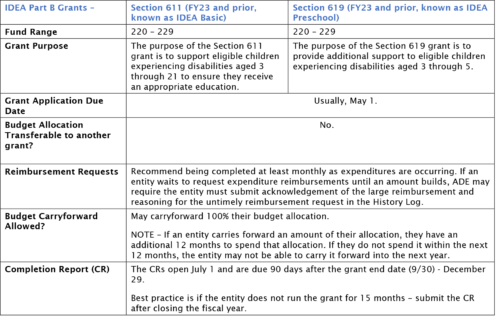
Tips for Fiscal Monitoring of Grants –
To monitor grant expenditures in School ERP Pro –
- Make sure your School ERP Pro budget agrees with the GME allocated budget.
- General Ledger -> Budgeting -> Budget Input
- In the account filter – Input the fund number and a 6 for the first element in the object code and select Apply Selection. The total budget should agree to the amount budgeted within GME. If it does not, you will want to update the account filter to match the GME function and object codes and update the budgeted amounts within School ERP Pro.
- Run the AZ-Grants Management Report as of the substantial approval date through the present day to review the entity’s expenditures compared to what was budgeted for in the grant.
- General Ledger -> Reports -> AZ – Grants Management Report
- If your entity runs its grants for 12 months –
- Select the grant fund number box.
- The From Date should be the grants substantially approved date.
- NOTE – This date is not ALWAYS 7/1. Review your grant details.
- The To Date is recommended to be the date you are running the report. The To Date should be the last day a transaction/journal entry is posted against the fund.
- The fiscal year drop down box should be: Current Year Only
- If your entity runs its grants for 12 months –
- If your Entity runs its grants for 15 months – Make sure you are in the latest connection group for the grant period. For example, grants starting on 7/1/2022 – 9/30/2023, if 6/30 has not passed, you will run the report from the FY23 connection group. If 6/30 has passed, you will want to be in the FY24 connection group running this report.
- Select the grant fund number box.
- The From Date should be the grants substantially approved date.
- NOTE – This date is not ALWAYS 7/1. Review your grant details.
- The To Date is recommended to be the date you are running the report. The To Date should be the last day a transaction/journal entry is posted against the fund.
- The fiscal year drop down box should be: Current Year Only for grant periods that 6/30 has not yet passed and Current Year & Prior Year if 6/30 has passed and the grant is in its last three months.
- After the report is ran, you will then review the budget column against the expenditures column to ensure the Entity has not overspent its allocation or to investigate any potential need for a budget revision. Note – the budget column will populate the budgeted from the fiscal year connection group the report is generated from.
To monitor the grant expenditures manually –
- If your entity utilizes another system outside of School ERP Pro, you will want to ensure that your systems budget is updated to match the grant allocated budget. If your system does not hold budgets, it’s recommended to utilize a spreadsheet to track the grant budget.
- ADE has created a template for entities to utilize if they must manually track their expenditures. See document attached. You will review your systems transactions that are coded to the applicable budget function and object codes and populate the template. You can also use this template as your expenditure back up when completing budget revisions.
- After the template is built, you will then review the amount expended against the GME budget allocation to ensure the Entity has not overspent its allocation or to investigate any potential need for a budget revision.
For a print-ready version of this article: Click here